YouTube Live Streaming Tips
Practical ways to prepare, promote and improve your YouTube livestream, plus a clear guide to choosing optional live-view support.
How to Get More Viewers on YouTube Live
A successful livestream starts before you press Go Live. You need a reliable setup, a clear topic, early promotion and a reason for viewers to stay. This guide covers the complete process, from preparing your channel to promoting the replay after the broadcast.
Prepare Your YouTube Livestream Before Going Live
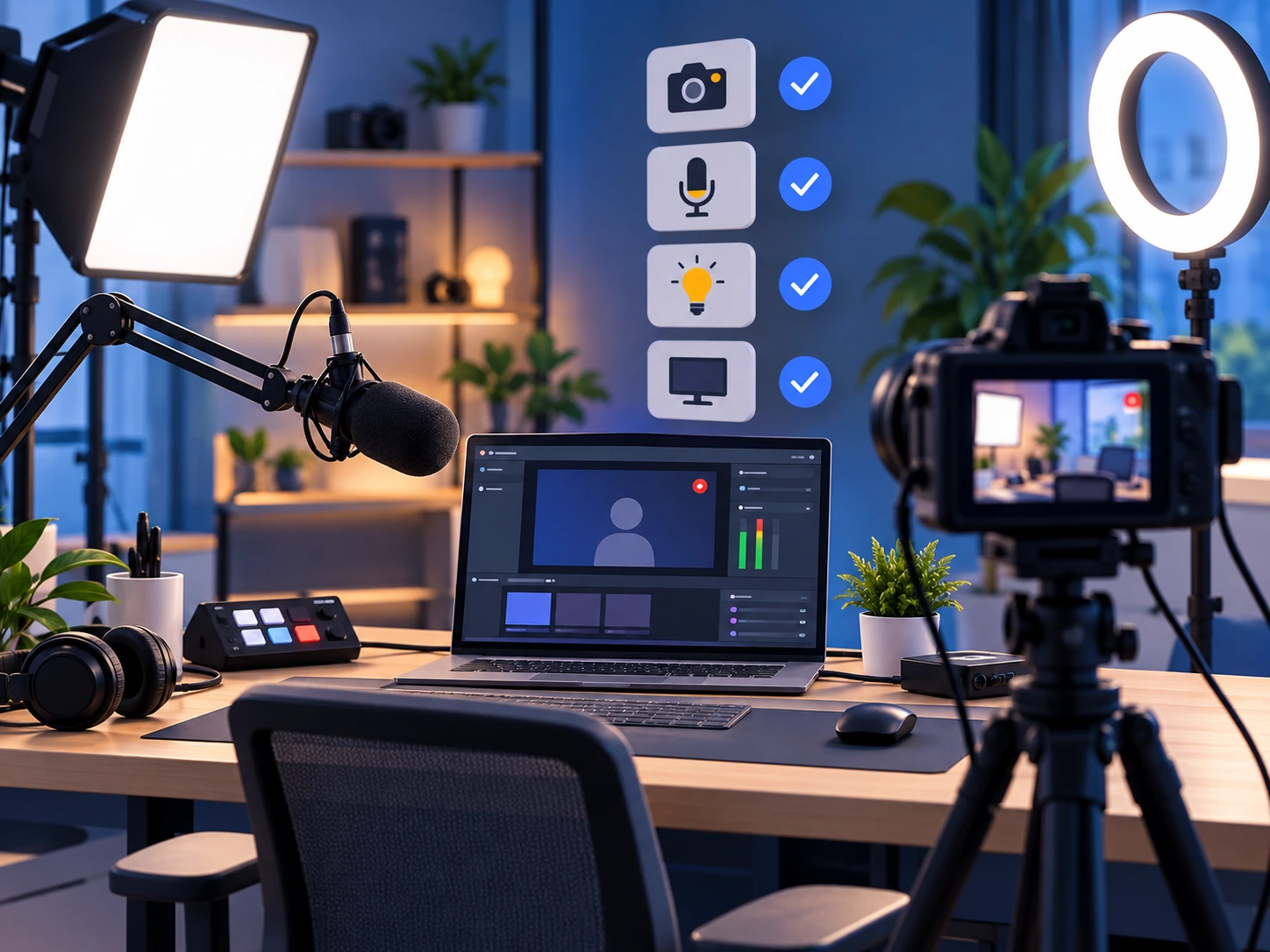
First, confirm that your channel is verified and has no active livestreaming restrictions. YouTube currently offers mobile, webcam, encoder and console streaming, so choose the method that fits your content and equipment.
Test your microphone, camera, lighting, internet upload speed and stream settings before the scheduled start. A private or unlisted test can help you catch audio delay]i, poor lighting, unstable bitrate and incorrect screen layouts without affecting the public broadcast.
For current eligibility requirements and setup methods, read the official YouTube livestreaming guide.
Attract Viewers Before the Stream Starts
Give people enough information and enough time to decide that your livestream is worth joining.
Choose One Clear Topic
Make the main promise of the stream obvious. A focused topic is easier to explain in the title, thumbnail and promotional posts.
Create a Specific Title
Tell viewers what they will learn, watch or receive. Avoid vague titles that do not explain the value of joining live.
Design a Readable Thumbnail
Use one clear subject, strong contrast and only a few words. The thumbnail should remain understandable on a small mobile screen.
Schedule and Share Early
Create the livestream page in advance and share its link through your community, email list and social channels. Send another reminder shortly before the stream begins.
Keep Viewers Watching During the Livestream
Begin with the main subject quickly. Explain what will happen during the stream and give viewers a reason to stay for the next segment. Long introductions can lose people before the useful content begins.
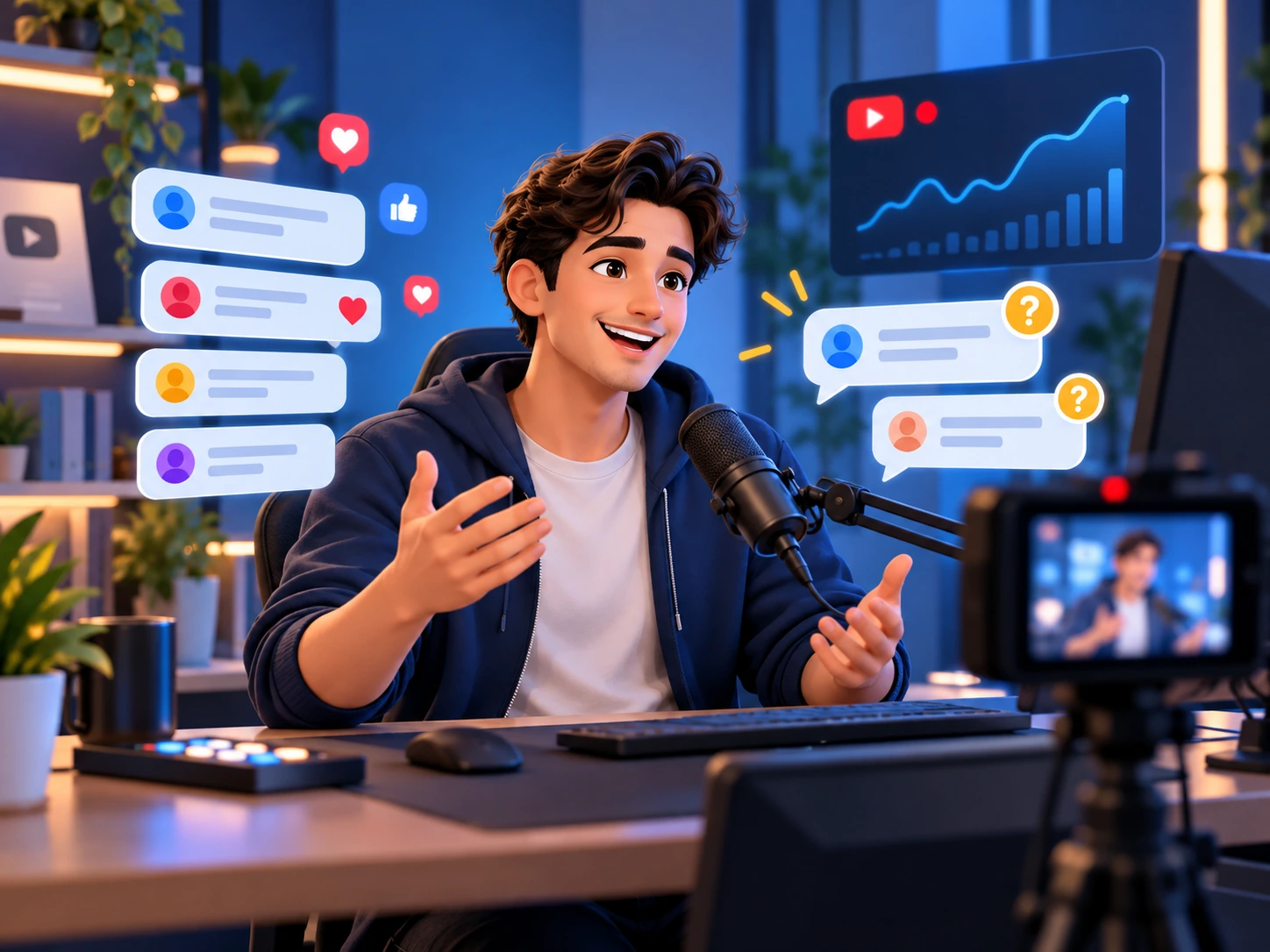
Divide the broadcast into clear sections such as introduction, main discussion, demonstration, questions and closing. Monitor the chat, acknowledge useful comments and use polls or direct questions when they fit naturally.
Mention your call to action only when it supports the content. Ask viewers to subscribe, visit a relevant page or join the next stream, but avoid repeating the same request too often.
A Simple YouTube Livestream Promotion Timeline
Promote each stream in stages instead of relying on a single announcement.
Schedule
Create the public livestream page and prepare the title, description and thumbnail.
Announce
Share the livestream link with your existing audience before the broadcast.
Remind
Send a short reminder near the scheduled start time without repeatedly spamming followers.
Repurpose
Turn useful moments into Shorts, clips and posts after the livestream ends.
Horizontal Livestreams
Horizontal streams work well for gaming, interviews, presentations and long-form broadcasts. YouTube currently supports features such as clickable chat links, 4K broadcasts and live redirects in horizontal streams.
Vertical Livestreams
Vertical streams are designed for mobile viewing and may be discovered through YouTube’s scrollable live feed. Keep important subjects and on-screen text inside the visible vertical area.
Compare YouTube’s current horizontal and vertical livestream features
Choose a YouTube Livestream Service by Duration
ZOSMM currently lists fixed-duration YouTube live services. Choose a duration that matches your planned broadcast and search the service ID on the Services page. Check the current rate, order limits, estimated time and full description before ordering.
Quick 15-Minute Stream
Up to 24 Hours
How to Order YouTube Live Stream Services
You can review and place a quick order directly from the public service list without signing in.
Open the Services Page
Visit the ZOSMM Services page.
Find the Service
Search for the relevant service ID or use terms such as “YouTube Live Stream.”
Review the Details
Select View and check the duration, minimum order, maximum order, estimated time and required link format.
Create the Order
Select Create order, enter the requested information and review the order details before payment.
Important: Understand YouTube’s Engagement Policy
Paid support should never replace useful content, genuine promotion or real audience development. YouTube states that artificially increasing views, likes or live traffic is prohibited. It also says artificial traffic may not be counted and policy violations may result in enforcement against the content or channel.
Before using any third-party service, read YouTube’s Fake Engagement Policy.
ZOSMM does not guarantee YouTube rankings, monetization eligibility, advertising revenue, permanent watch hours or compliance for a specific channel. Review the selected service and YouTube’s current policies before ordering.
Frequently Asked Questions
Short answers to the most important questions about preparing a livestream and choosing an optional live service.
Do I need a ZOSMM account to place an order?
No. You can browse the public service list, select View and use Create order without signing in. An account is useful for wallet deposits, order history, tickets and repeat orders.
Which YouTube link should I submit?
Open the selected service description and follow its required link format. Make sure the livestream is scheduled or active and that its visibility matches the service requirements.
Which service duration should I choose?
Choose the duration closest to the planned length of your livestream. Review the description because duration and delivery conditions can differ between services.
When should I place the order?
Prepare the public livestream page first. Then check the service’s estimated start information and place the order according to its current instructions.
Do livestream services guarantee watch time or monetization?
No. Do not treat a live-view service as guaranteed monetization watch time, permanent video views or advertising revenue. YouTube may filter traffic it considers artificial.
Can a service guarantee higher YouTube rankings?
No service can guarantee search rankings, recommendations or long-term channel growth. Content quality, audience response, topic demand and YouTube’s systems remain outside the provider’s control.