What Do You Want to Learn?
Jump directly to the part of ZOSMM you need, from creating your account and placing an order to tracking services and using advanced tools.
Create your account, verify your email, sign in, add funds and understand payment confirmation.
Browse services, choose a suitable option and submit your order with the correct link and quantity.
Check Order IDs and statuses, use available Refill or Cancel options and submit a support ticket.
Explore Mass Order, subscriptions, API, reseller tools, Child Panels, Affiliate, Earn Cash and discount plans.
Create and Verify Your ZOSMM Account
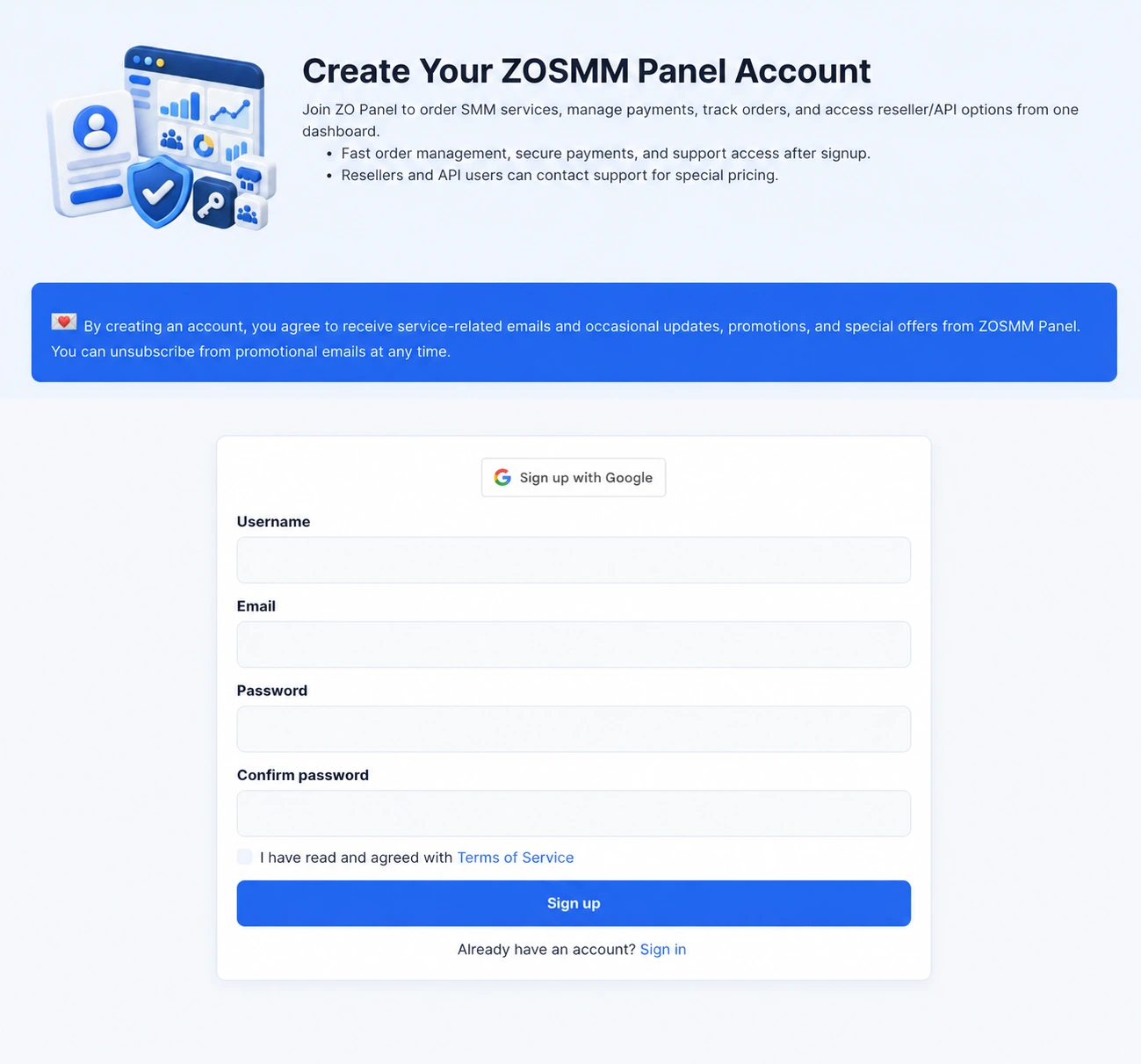
Open the ZOSMM signup page and register with Google or enter a username, a valid email address and a secure password.
Accept the Terms of Service and select Sign up. ZOSMM will send a verification message to your email address. Open the message, confirm your email and then return to ZOSMM to sign in.
If you cannot find the verification message, check your Spam or Junk folder and confirm that you entered the correct email address.
Add Funds and Confirm Your Payment
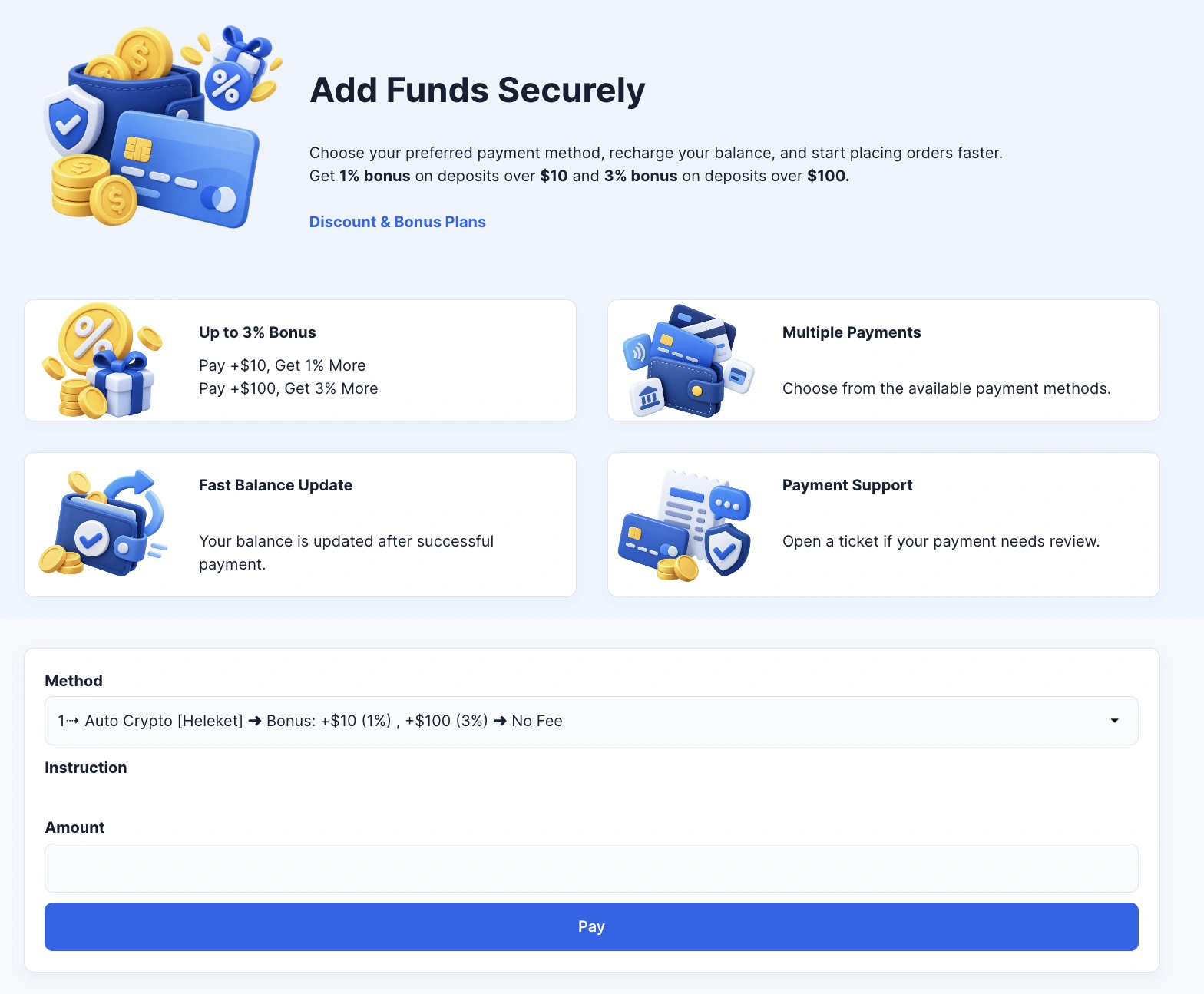
After signing in, open Add Funds and select one of the currently available payment methods. Before paying, check the minimum and maximum deposit, payment instructions, possible fees and any bonus displayed for that method.
For cryptocurrency payments, always use the exact network, wallet address and amount shown during checkout. Your balance is normally credited after the required blockchain confirmations.
If a completed crypto payment has not been added automatically after at least 30 minutes, submit one support ticket and include:
- Payment method and network
- Deposit amount
- Transaction ID or hash
- Payment time
- A payment screenshot, if available
Payment methods, limits and bonuses may change. Always follow the information currently displayed on the Add Funds page.
If Your Crypto Deposit Is Not Added
Wait at least 30 minutes after the payment is completed. If the balance is still not credited automatically, open a support ticket and include:
- Payment method and blockchain network
- Exact amount paid
- Transaction date and time
- Transaction ID or TXID
- A screenshot from your wallet or exchange showing the payment as Completed or Successful
- The sender and recipient wallet addresses shown in the payment details
The screenshot must come from the payment details page of your wallet or exchange, not only from the wallet balance screen. Copy the TXID into the ticket text as well.
Only send this information through your private support ticket. Never share your password, seed phrase, private key or recovery code.
Choose the Right Service and Place Your Order
Before placing an order, read the Terms & Conditions and the full description of your selected service. Service conditions and delivery estimates can differ between services.
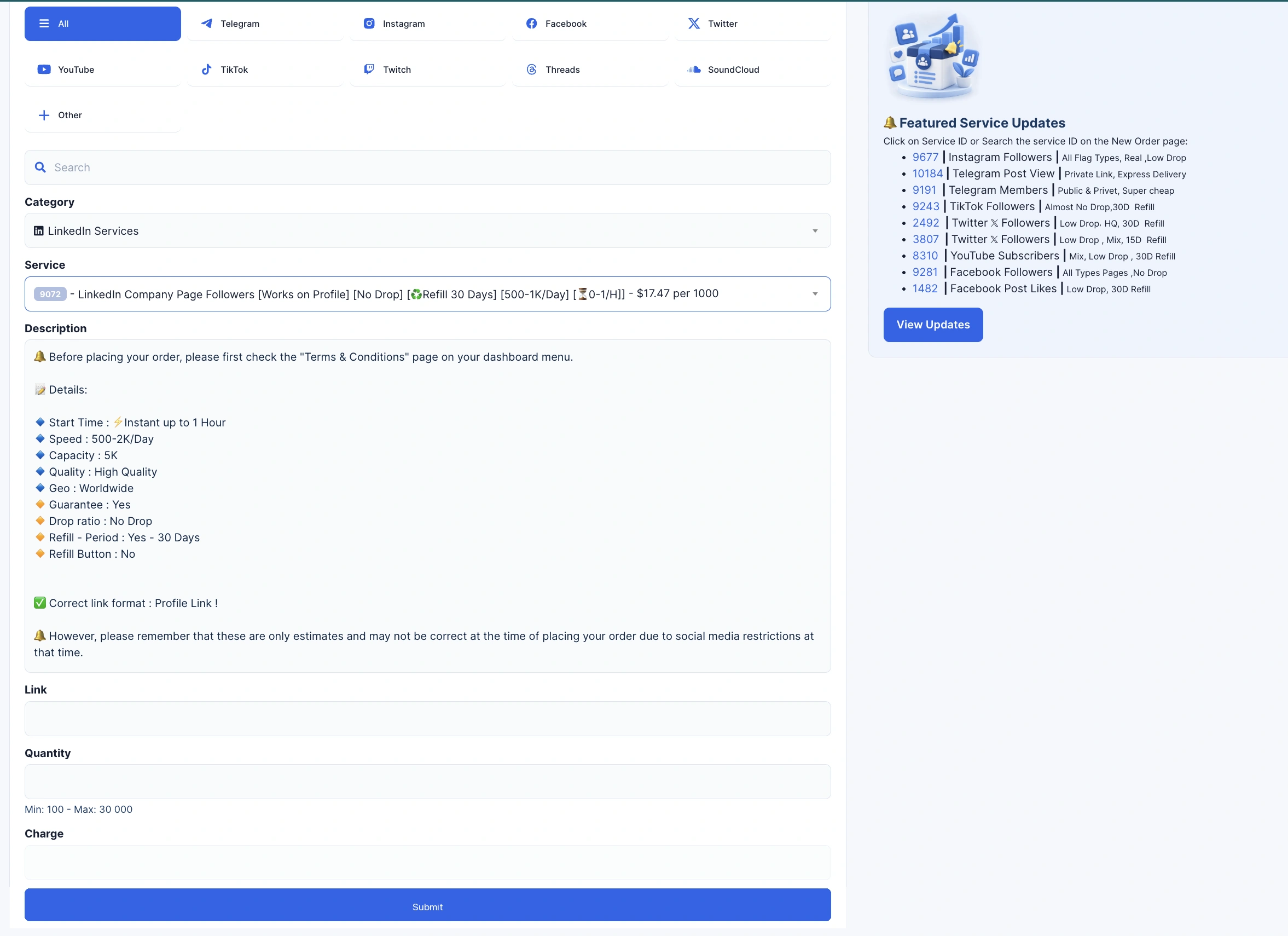
On the New Order page, select a social media platform or use the search box to find a service by its name or ID. Choose the correct category and service.
Before submitting your order, check:
- Service ID and name
- Rate per 1,000 and final charge
- Minimum and maximum quantity
- Correct link format
- Estimated start time and delivery speed
- Capacity, quality, and target location
- Drop rate and refill period
- Guarantee, Refill, and Cancel options
The Featured Service Updates section on the right shows recommended services and important updates. Click any blue Service ID to select that service directly in the order form. Always review its latest description before ordering.
Enter the correct profile, post, channel, or other required link. Choose a quantity within the displayed limits, review the final charge, and click Submit.
For more service updates, bonuses, Flash Rewards, and important announcements, follow the ZOSMM Telegram Channel.
Track Your Orders and Understand Each Status
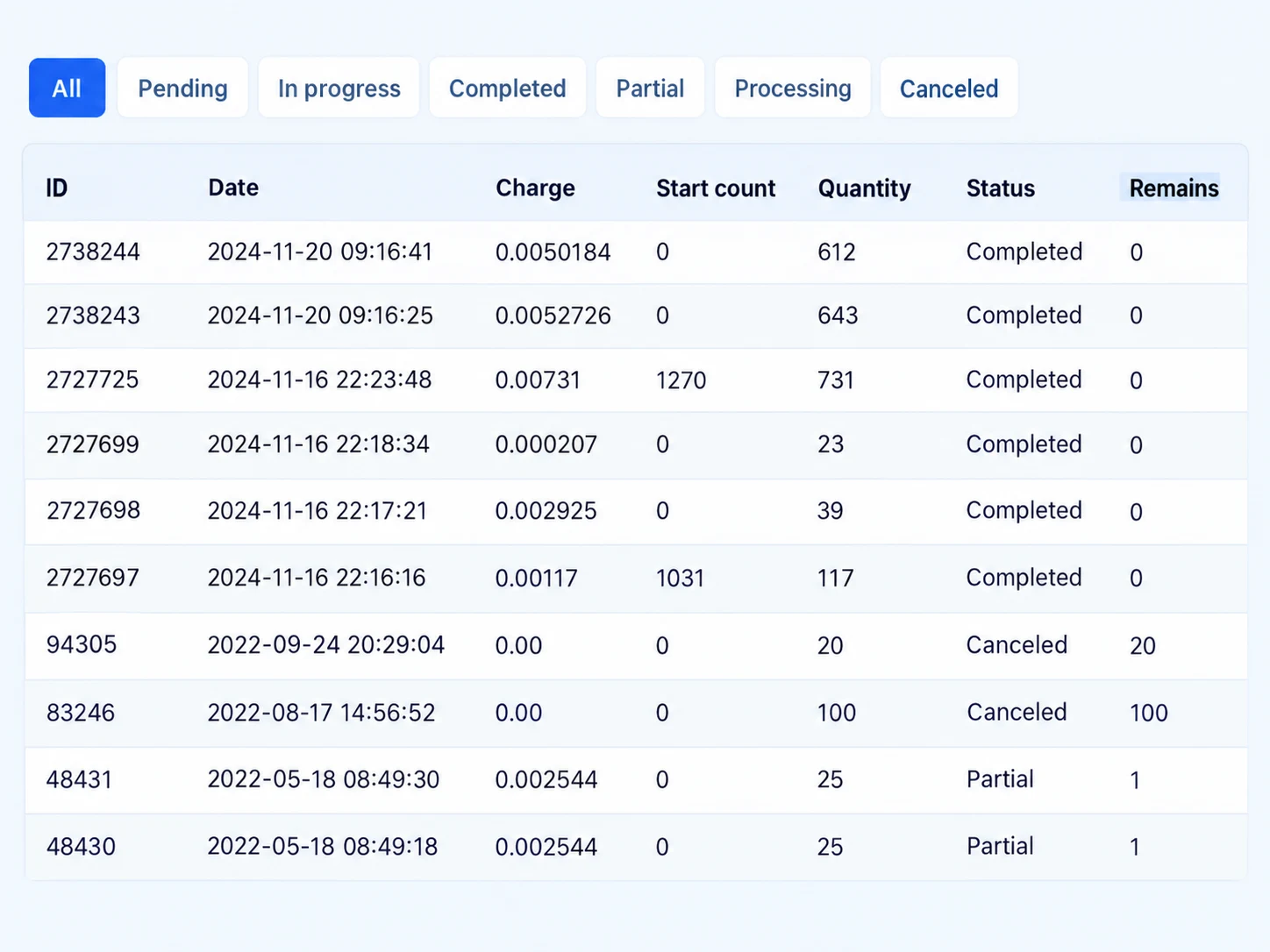
Open Orders History to check the progress and details of every order. Keep the Order ID when you need to contact support about a specific order.
Each order includes:
- Charge: The amount deducted from your balance for the ordered quantity.
- Start Count: The number of followers, likes, views, or other items recorded when the order started. This number may be required for refill requests.
- Remains: The quantity that has not yet been delivered.
Order Statuses
- Pending: The order is waiting and has not started processing yet.
- Processing: The order is being prepared and processed.
- In Progress: Delivery has started and the order is currently running.
- Completed: The full order has been delivered and finished.
- Partial: Only part of the order was delivered. The charge for the undelivered quantity is automatically returned to your balance. This can happen because of a service issue, limited capacity for a specific link, or an approved cancellation request.
- Canceled: The order was canceled and its remaining charge was returned to your balance. Check the service description, submitted link, and order rules before placing a new order. Cancellation may happen because of an incorrect link, the wrong service, a temporary service issue, or prohibited content [Terms].
Canceling an Order
A Cancel button appears only when the selected service supports cancellation. Some services may allow cancellation through a support ticket when this is clearly stated in the service description.
If cancellation is not offered in the service description and no Cancel button is available, the order cannot be canceled at any status.
Understand Service Details Before Ordering
Start time, speed, drop rate, and refill conditions are different for each service. Check these details before submitting an order.
Start Time, Speed and Average Time
Start Time is the estimated time between placing an order and its delivery starting. It is based on recent orders and may be shorter or longer because of the current service status, the submitted link, order quantity, or service workload.
Speed is the estimated delivery rate after the order starts. For example, a service may deliver approximately 5K per day or 3K per hour. Actual delivery may be faster or slower.
Average Time shows how long the service has usually taken to complete previous orders. It is a useful reference based on historical performance, not a guaranteed completion time.
Drop, Guarantee and Refill
Drop means that some delivered followers, members, views, likes, or other items may disappear after the order is completed. Some services may have low drop, high drop, no-drop performance, or a refill guarantee.
A service includes Refill only when it is clearly stated in its description. Depending on the service, refill may be requested with a dashboard button or through a support ticket. Refill periods can range from 15 days to lifetime coverage.
The current count must not fall below the original Start Count. For example, if a channel starts with 5K members and you order 2K, the completed count becomes 7K. The service covers only the ordered range between 5K and 7K. If the count falls below the original 5K Start Count, a refill cannot be processed.[Terms]
Never place multiple similar orders for the same link at the same time.
This includes orders from the same service, different ZOSMM services, or another website. Overlapping orders cannot be tracked correctly and may lose completion, refund, or refill protection.
Create Automatic Orders with Subscriptions
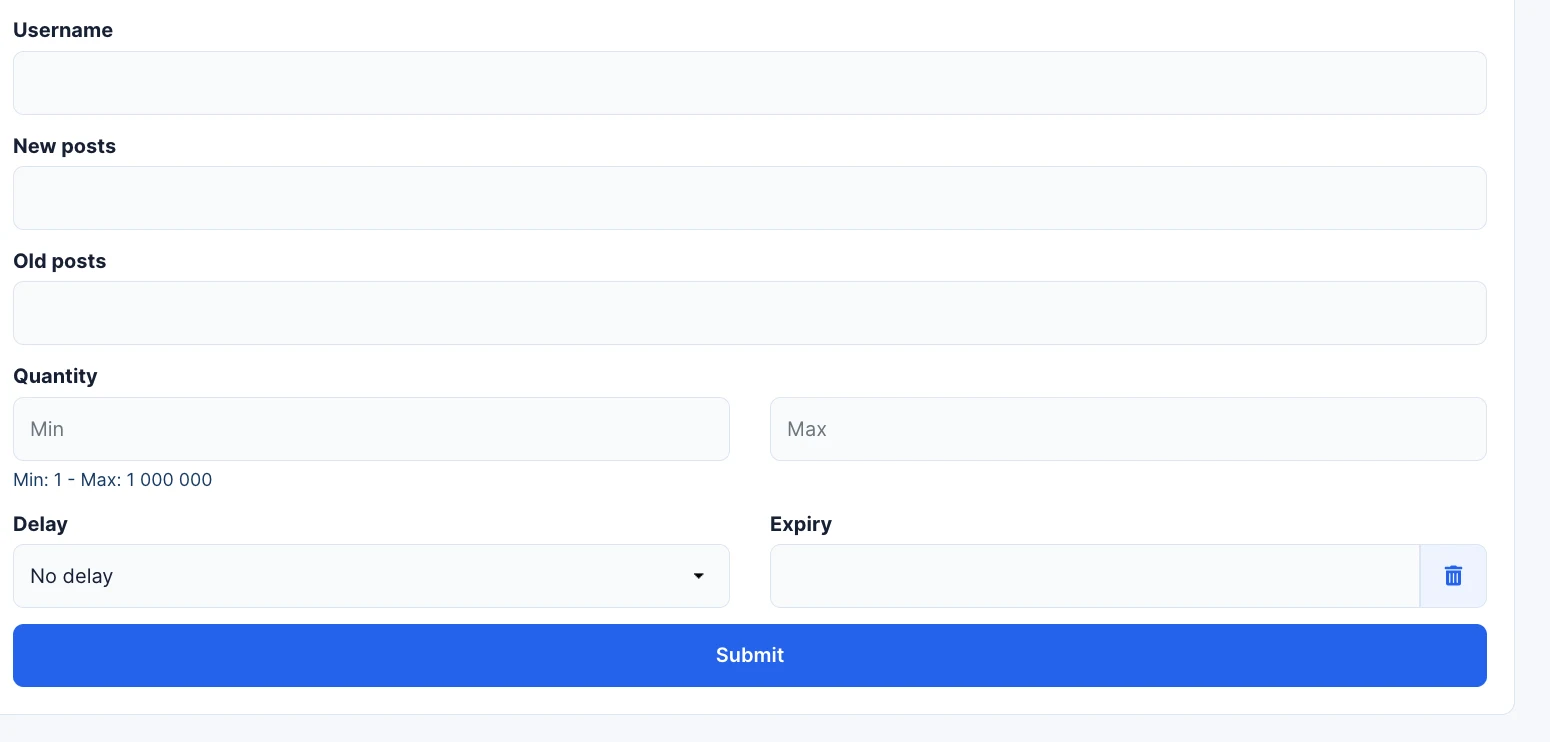
A subscription automatically creates orders for a selected profile, page, or channel based on your chosen settings. It can be used for services such as automatic post views, reactions, likes, followers, or other supported actions.
Subscriptions are available only for services marked as Subscription. Depending on the selected service, you can enter the username or link, choose the number of new or old posts, set minimum and maximum quantities, add a delivery delay, and select an expiry date.
Review the service description and every subscription setting carefully before clicking Submit. Automatic orders will follow the limits and conditions of the selected service.
Get Help Through Support Tickets
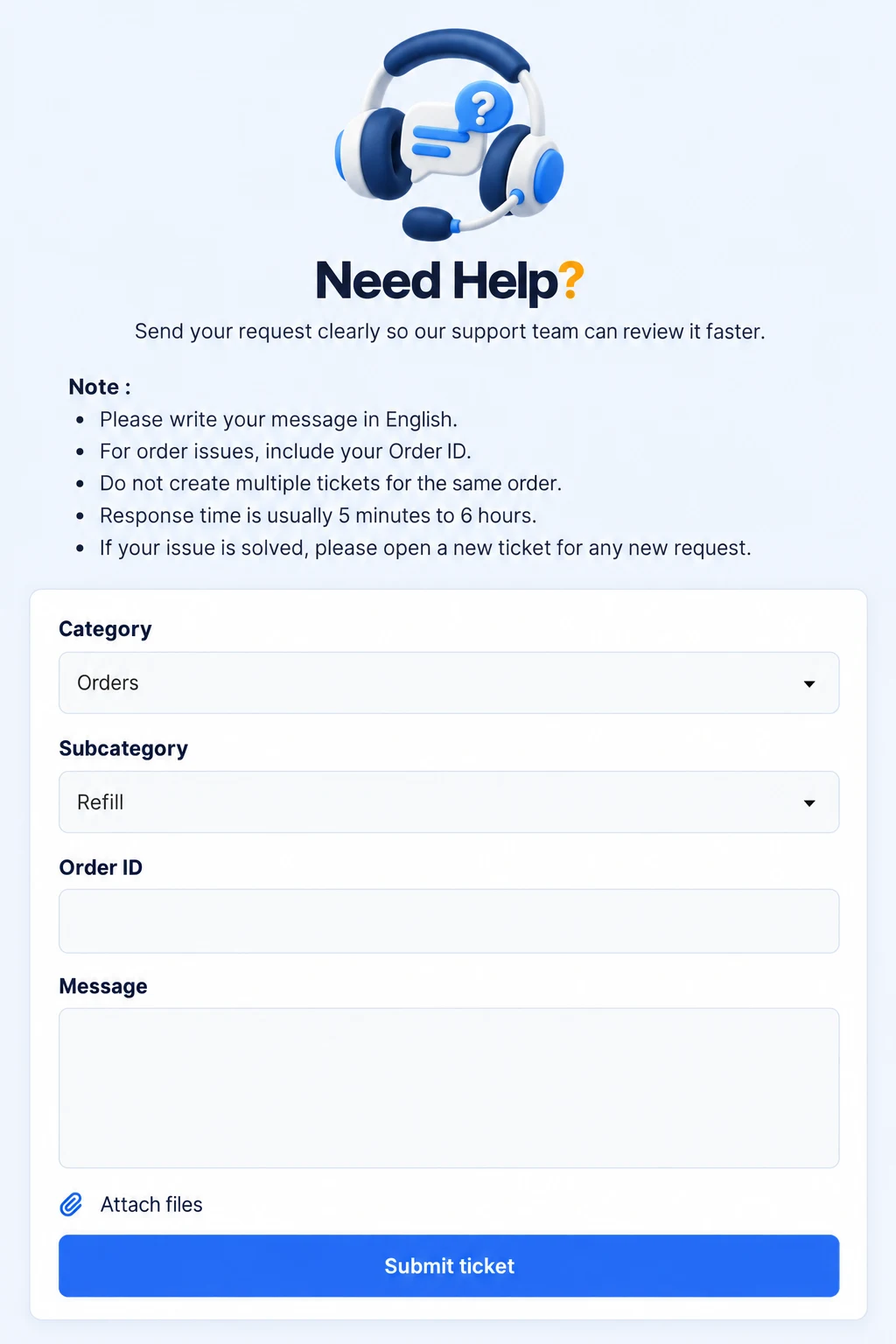
Registered users can open a support ticket for order issues, payments, account questions, service or feature requests, reseller and API enquiries, or other problems.
Before opening a ticket:
- Read this guide and the Terms & Conditions.
- Read the instructions displayed at the top of the Tickets page.
- For an order issue, check the service description and its estimated start and delivery times.
- Check the ZOSMM Telegram Channel for current service issues or important updates.
- Resellers should review the Discount & Bonus Plans before requesting special conditions.
When submitting your ticket:
- Choose the correct category and subcategory.
- Write your message in English.
- Include the Order ID for every order-related request.
- Explain only one issue in each ticket.
- Include all information, screenshots, payment records, and other evidence in the first message.
- Do not create multiple tickets for the same order or issue.
We usually try to respond within six hours. Resellers and API users may have separate request options for faster assistance.
If support asks for more information, reply within 48 hours. Otherwise, the ticket may be closed and you will need to open a new one. After an issue is resolved, create a separate ticket for any new request.
Telegram support is intended mainly for people who have not registered and cannot open a ticket. Tickets have priority, so registered users may receive a slower response through Telegram. Please be patient while your request is reviewed.
Place Multiple Orders with Mass Order
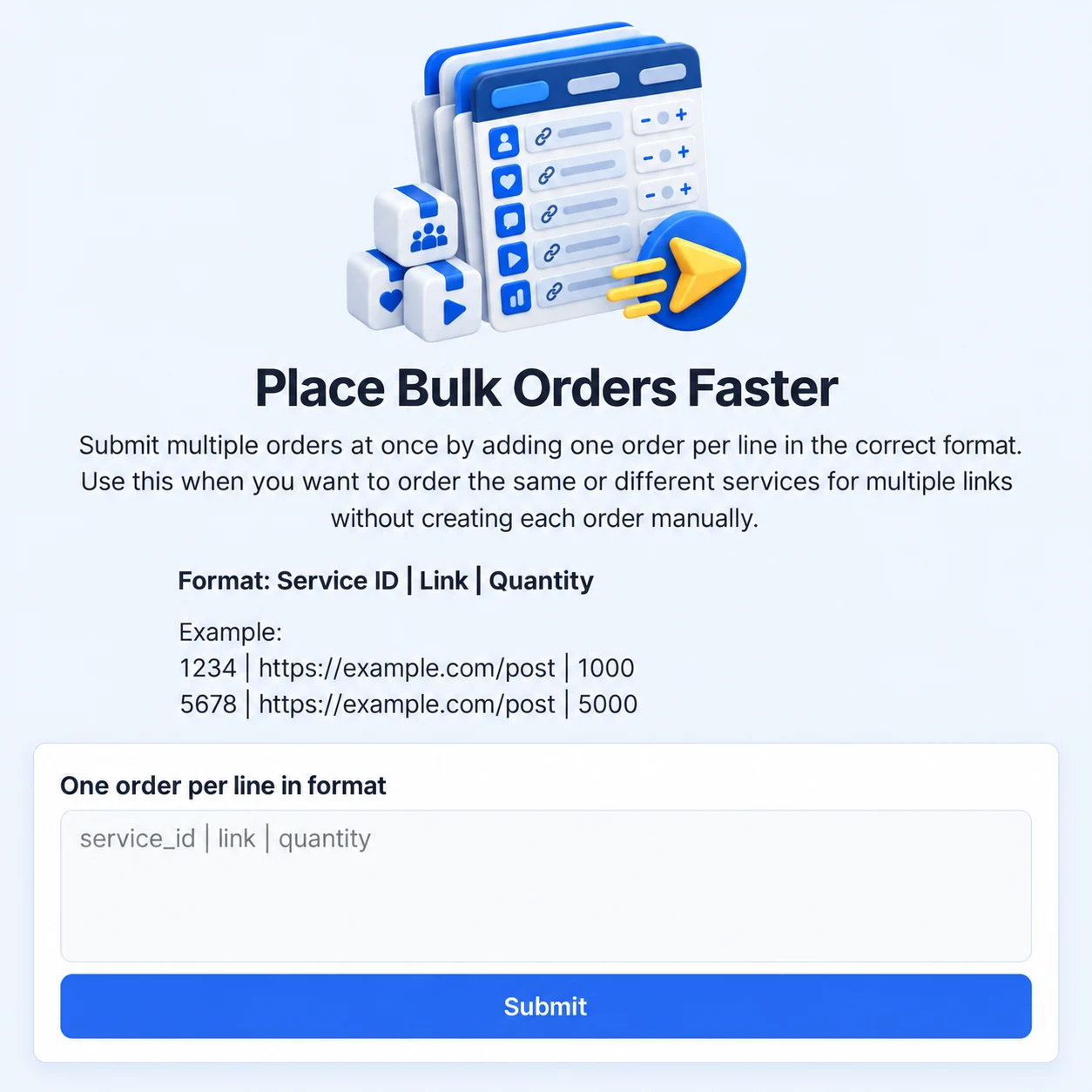
Mass Order lets you submit multiple orders at once without completing the New Order form separately for every link.
Add one order per line using this exact format:
Service ID | Link | Quantity
Example:
1234 | https:// example.com/post | 1000
5678 | https://example.com/post | 5000
Before submitting:
- Use the correct numeric Service ID.
- Follow the required link format for that service.
- Keep the quantity within its minimum and maximum limits.
- Separate each value with the
|symbol. - Place only one order on each line.
- Review every line before clicking Submit.
Each line creates a separate order and follows the same service rules as a regular order. An incorrect Service ID, link, or quantity may create a wrong order that cannot be canceled.
Do not submit multiple similar orders for the same link at the same time, including orders from another website.
Order SMM Services Without Creating an Account
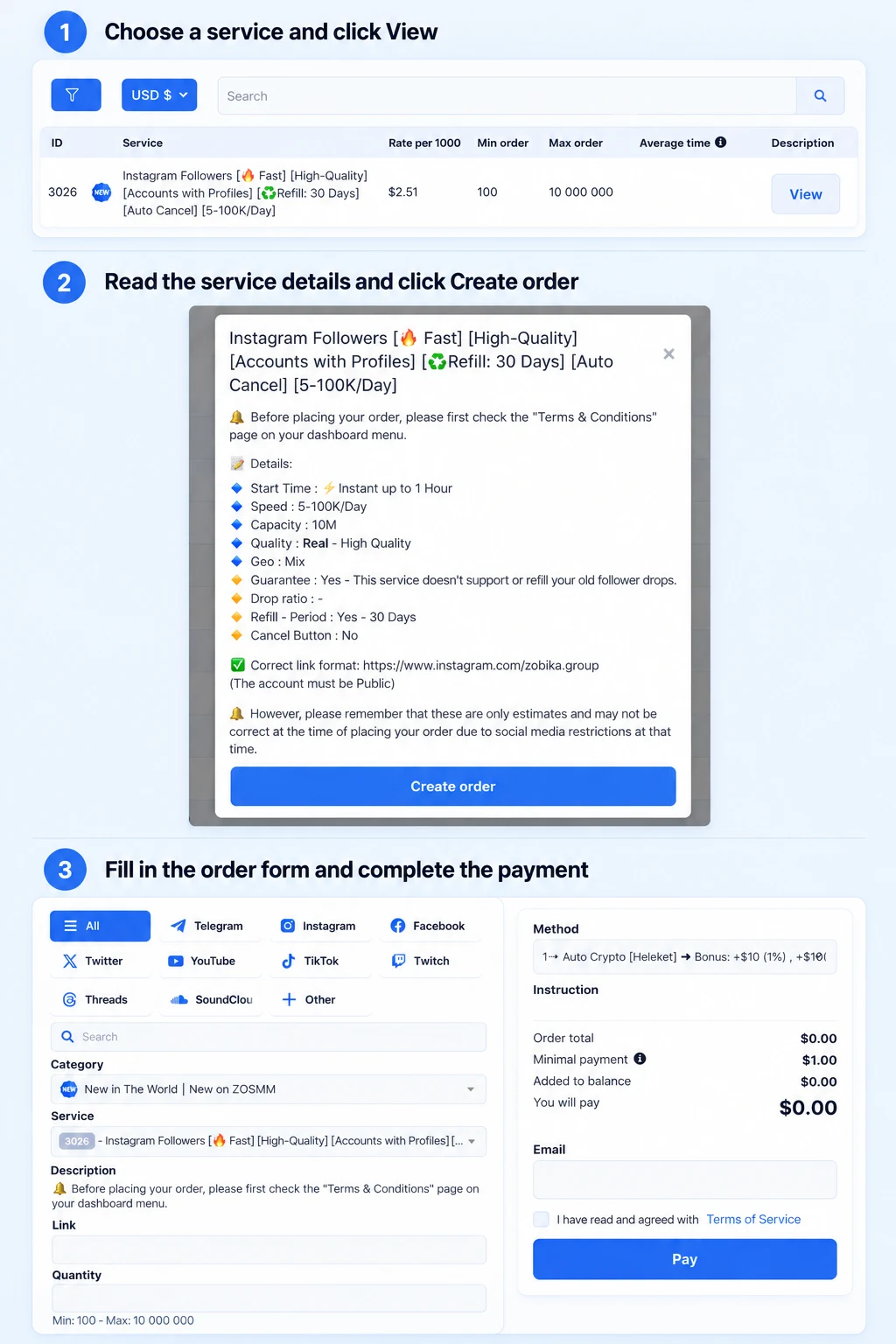
You can place a quick order directly from the public Services page without signing up or logging in.
Choose a service
Search or filter the service list, then compare the rate, minimum and maximum order limits, and average delivery time. Click View beside the service you want.
Review the service details
Check its estimated start time, speed, capacity, quality, refill period, cancellation option, and required link format. Read the Terms & Conditions before continuing.
Create your order
Click Create order to open the direct order page with the selected service already loaded.
Enter the order information
Paste the correct profile, post, channel, or other required link. Enter a quantity within the displayed minimum and maximum limits, then review the order total.
Complete the payment
Choose an available cryptocurrency payment method, enter your email address, accept the Terms of Service, and click Pay. The payment panel shows the order total, minimum payment, amount added to balance when applicable, and the final amount to pay.
Save your tracking details
After a successful payment, you will receive an order or tracking number. Keep this number and the email used for payment so you can follow the order or request assistance if needed.
For repeat orders, access to account balance, complete order history, bonuses, and dashboard tools, creating a free account is recommended.
If you are new to SMM services, start with the New in The World | New on ZOSMM category at the top of the category list, where you can find beginner-friendly services with simple descriptions and explanations of the main terms.
Explore More ZOSMM Tools
Use these tools to automate orders, manage customers, start your own panel, earn rewards, or reduce the cost of repeat orders.
Affiliate & Earn Cash
Discounts & Bonuses
Frequently Asked Questions About Using ZOSMM
We collected 8 of the most popular questions from our panel visitors and answered them.
Do I need an account to place an order?
No. You can order directly from the public Services page. However, an account makes it easier to add funds, track orders, use bonuses, and contact support.
How long does a crypto deposit take?
Most deposits are added automatically. If your balance is not updated after 30 minutes, open a support ticket with the TXID and complete payment details.
When will my order start?
Check the estimated Start Time in the service description. Actual timing may vary depending on the service status, order quantity, submitted link, and current workload.
Can I cancel an order after submitting it?
Only some services support cancellation. Look for a Cancel button or cancellation instructions in the service description. Otherwise, the order cannot be canceled.
What does a Partial order status mean?
Part of the order was delivered, and the charge for the undelivered quantity was automatically returned to your ZOSMM balance.
Can a dropped order be refilled?
Only services that clearly include a refill guarantee are eligible. The refill period, method, and conditions are shown in the service description.
Can I place multiple orders for the same link?
Do not place similar orders for the same link at the same time, whether through ZOSMM or another provider. Overlapping orders may lose completion, cancellation, or refill protection.
How can I contact ZOSMM support?
Registered users should open one support ticket with all relevant details and evidence. ZOSMM usually aims to respond within six hours.